-2.png)
Getting Started - 5 Steps
Once you have registered an email address, you will then be taken to our Getting started steps.
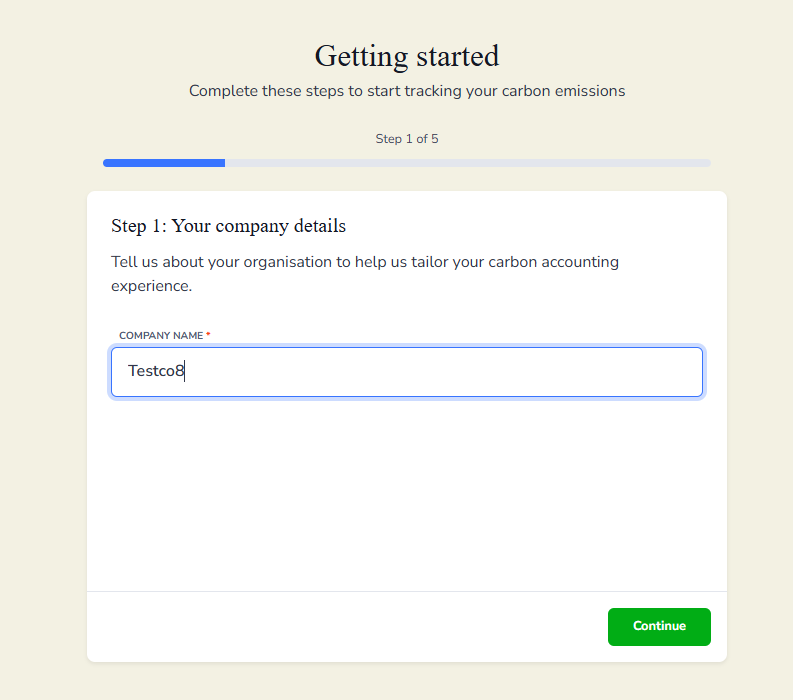
Step 1: Register your company details by entering your company name, then click Continue.
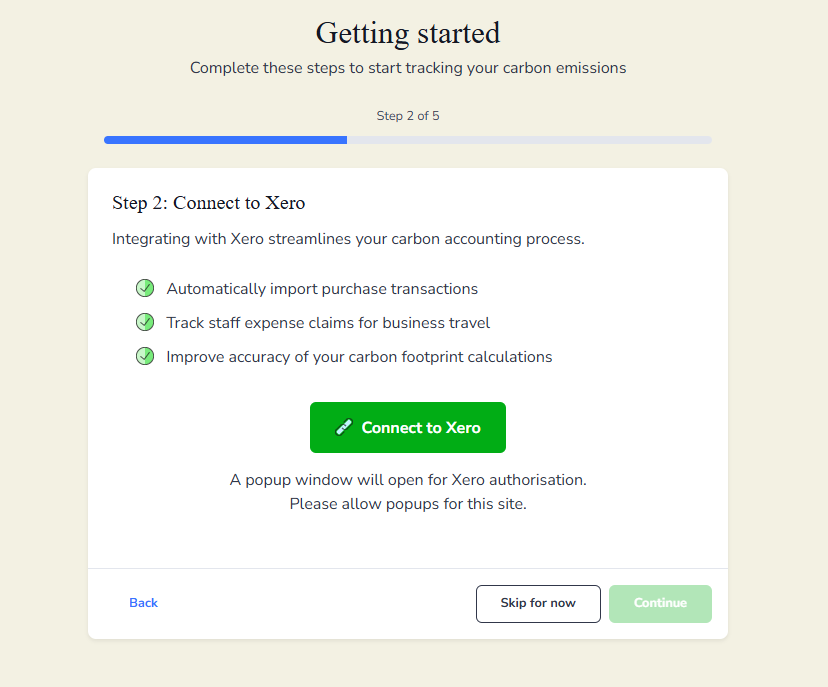
Step 2 : If you use Xero Accounting, connect your account to import relevant financial data into Zeropath to support your carbon reporting. If you don’t use Xero, or would prefer to connect later, select Skip for now. This will take you to Step 3.
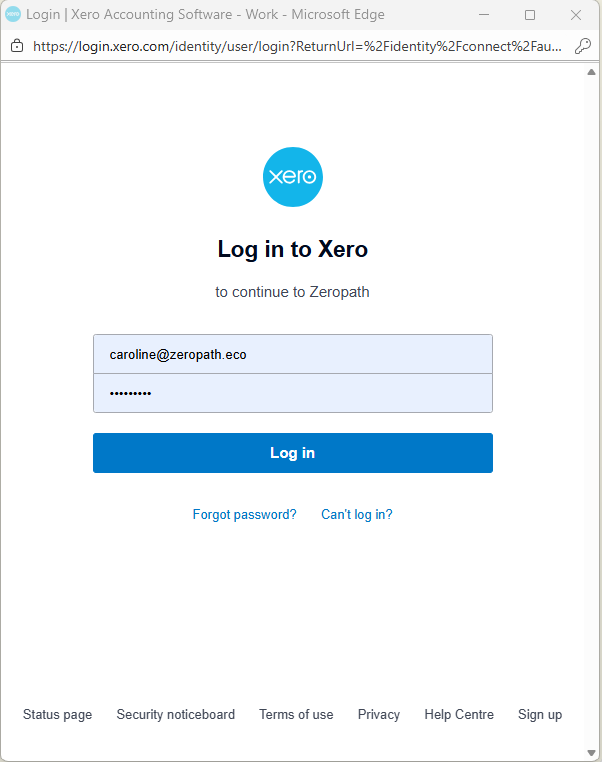
If you choose to Connect to Xero you will be directed to the Log in to Xero pop up. Add your credentials and click Log in.
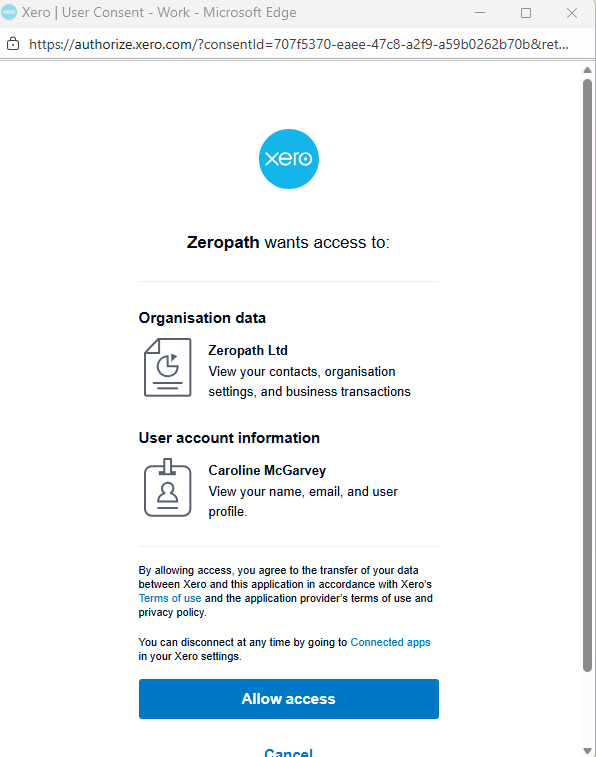
You will need to allow access so that Zeropath can view your transactions. Check the details are correct and Allow access.
Once the connection is successful, a confirmation message will appear. You can then close the window and continue.
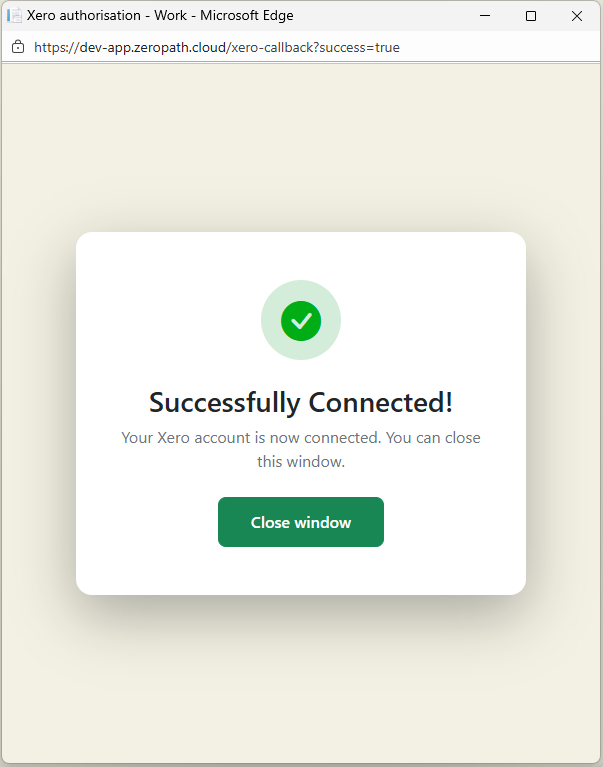
You will then see a screen to confirm Xero is connected to Zeropath.
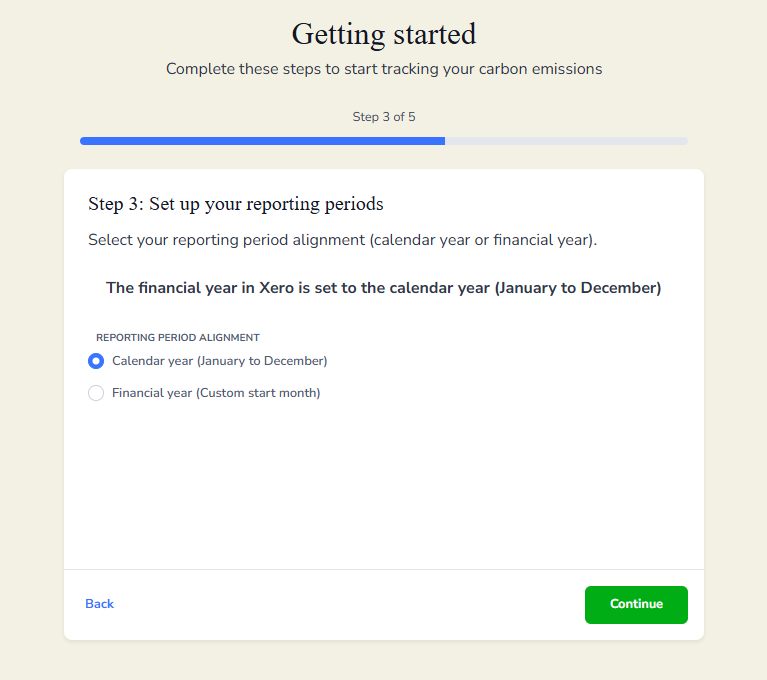
Step 3 : Set up your reporting periods. Choose whether to use a calendar year or financial year for your reporting period and click continue. If you use a different financial year, you will have the opportunity to select the starting month for your reporting period.
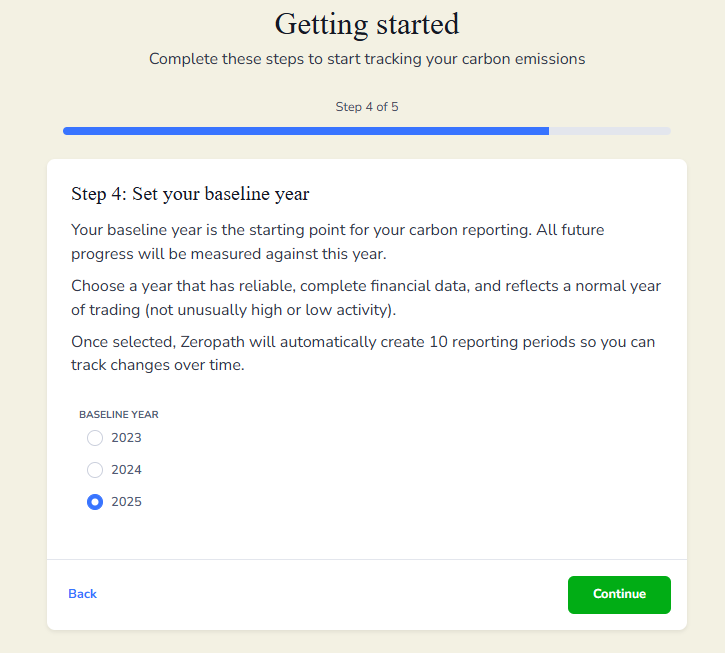
Step 4: Set your baseline year. Choose a year with reliable data that reflects normal trading activity. That might be the current year if you are a new business or have not been trading long and therefore do not yet have either a full financial year or have been building the business up so the first year does not reflect a normal trading year.
Then click continue.
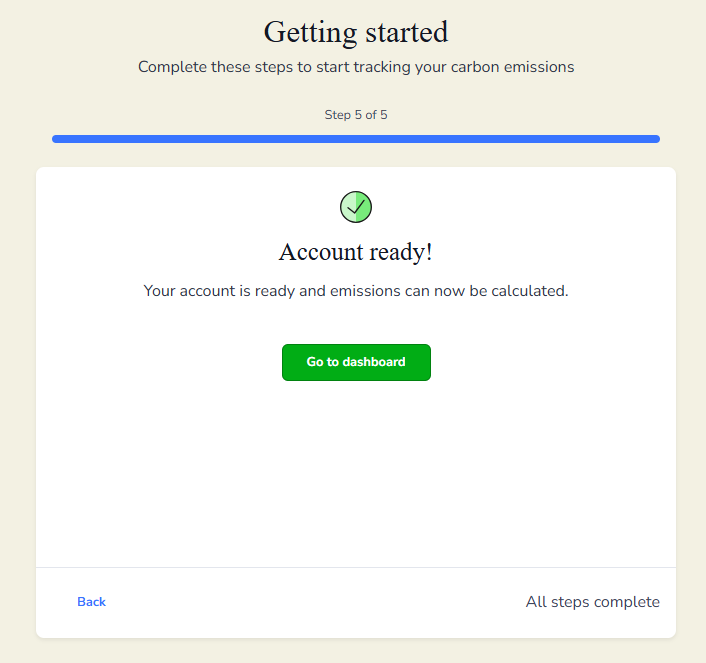
You’re all set! Click Go to Dashboard to start adding your data.
Your dashboard highlights what you’ve completed and what still needs attention in order to view your emissions for your baseline year.
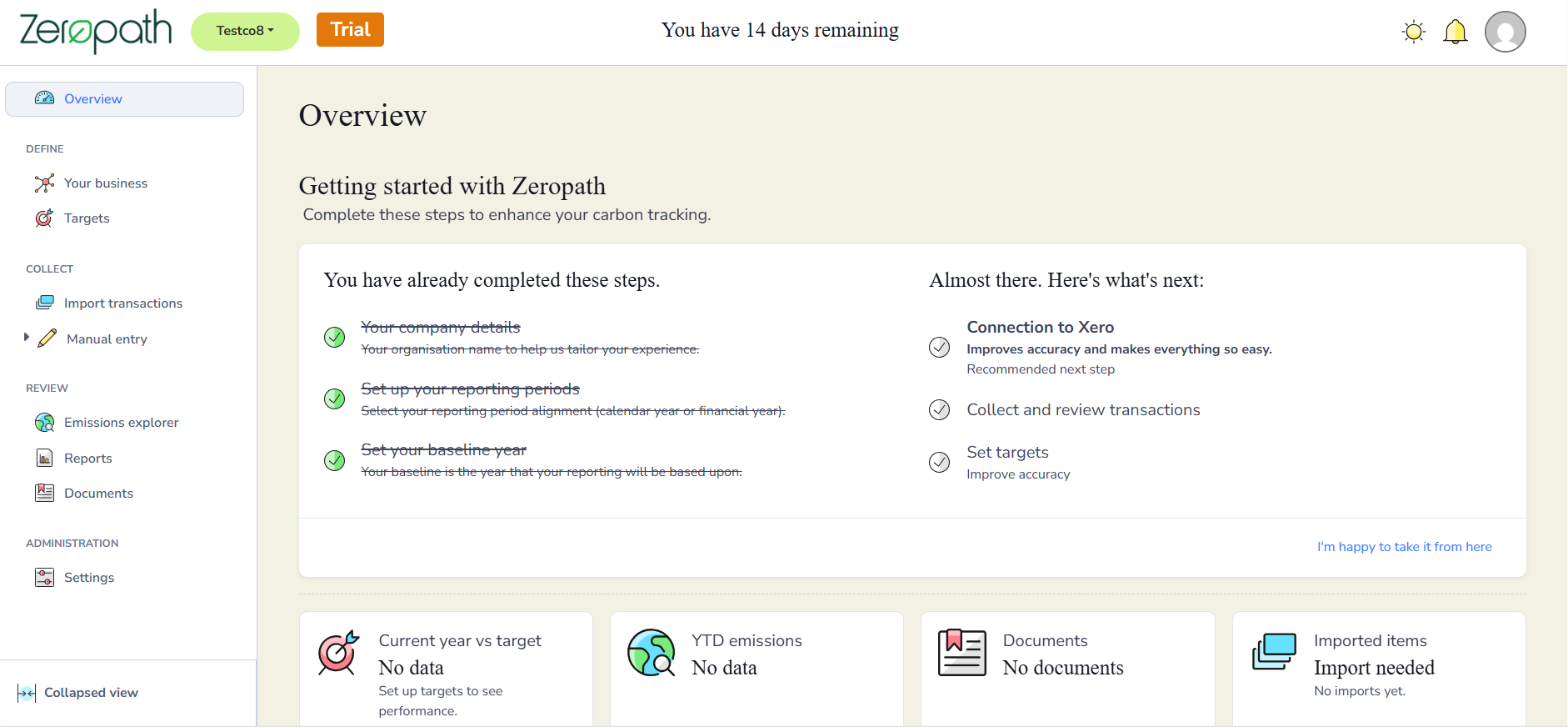
If you skipped adding Xero in Step 2, you’ll now see it listed on the right-hand side of your “Getting Started” box.
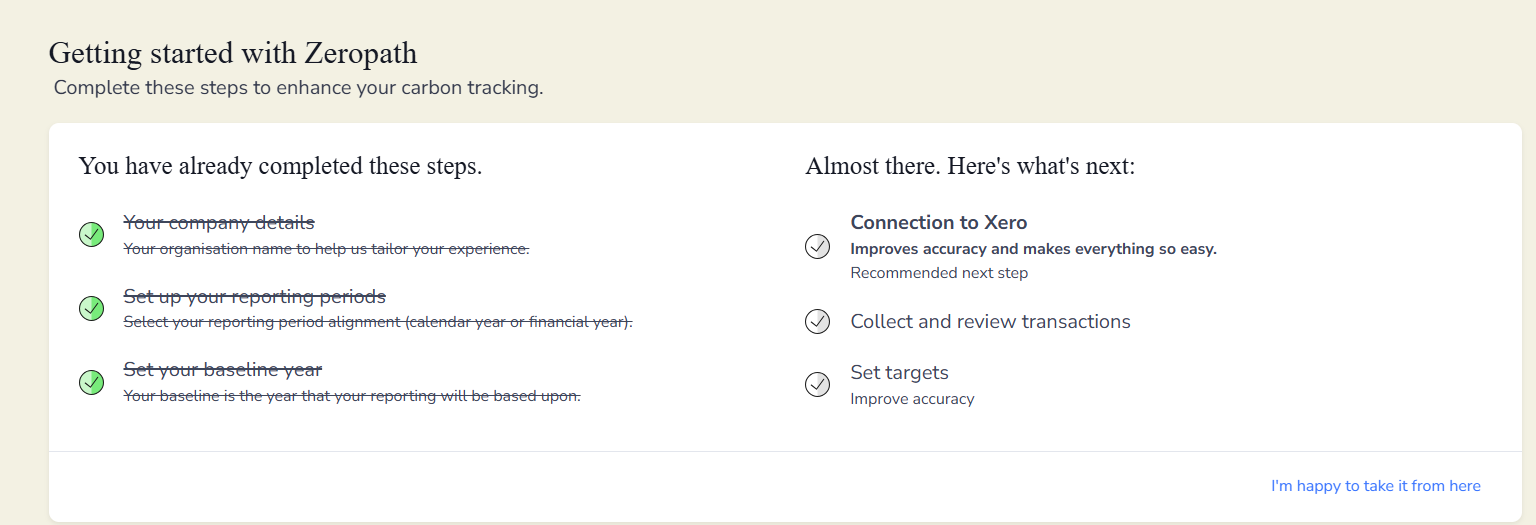
You can click on any of the sections in the Getting Started area to be taken to them. Once you are happy with all your entries, click on the blue text at the bottom to display the full Overview screen.