-2.png)
Getting Started - Collecting and reviewing transactions from Xero
Once your Xero connection is set up, the next step is to collect your transactions and review them so Zeropath can calculate your carbon footprint accurately.
Getting to imported transactions
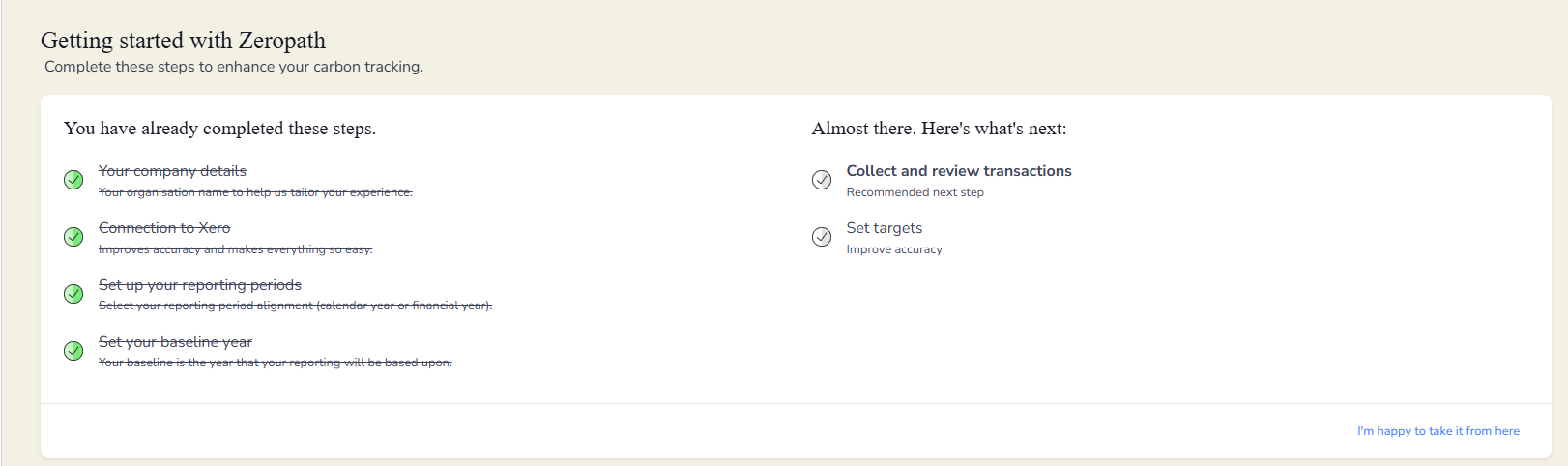
You can get to this section in two ways. From the Getting started screen, select Collect and review transactions. Or go to Imported transactions in the side menu.
Collecting your transactions from Xero
If no transactions have been imported yet, click Collect from Xero to begin the import. Only invoices dated on or after your baseline year will be displayed.
If you have Smart rules set up, you can click Apply smart rules to automatically categorise transactions that match your existing rules before you begin reviewing manually. For more on Smart rules, see the Smart rules article.

Reviewing your transactions
Each transaction imported from Xero is shown on the left. On the right you will see the Add carbon details panel where you can assign it to a carbon category.
Work through your transactions and for each one decide whether it is relevant to your carbon reporting. Transactions that are likely to be relevant include utility bills, fuel purchases, mileage claims, travel, accommodation, waste services and materials. Transactions such as general office supplies or non operational costs are unlikely to be relevant.

For transactions that are not relevant, select Ignore this to remove just that transaction from the list, or Ignore all similar to remove all transactions that match it in one go.
For relevant transactions, select the appropriate category from the Add carbon details panel.
Adding carbon details
Once you have selected a category, click on the transaction to confirm the details are accurate. You can either use the quantity from Xero directly, or enter a cost and price per unit and Zeropath will calculate the quantity for you. Select the correct unit, add a supplier if relevant, and add a description under Classification if needed.

When you are happy with the details, you have two save options.
Save creates a carbon transaction for this entry only.
Save and apply to similar creates a carbon transaction for this entry and applies the same mapping to all similar transactions in the list, saving you from having to review each one individually.
Creating a mapping rule
After saving, Zeropath will ask whether you want to create a rule for similar transactions in future.

The dialog shows what the rule will match on and what it will pre-fill when it runs. If you want to save this mapping for future imports, click Create rule. If you do not want to create a rule, click No rule.
You can also set an ignore rule scope here. Select Ignore this transaction to ignore only this line, or Ignore all similar to ignore all matching lines in future imports.
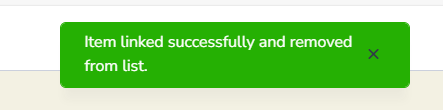
Once saved, a green confirmation message will appear confirming the transaction has been linked and removed from the list.