-2.png)
Documents
The Documents section is where you create, manage and publish supporting documents such as a Carbon Reduction Plan. You can build documents from templates that pull in live data from your Zeropath account, then publish them for sharing with stakeholders or on your website.
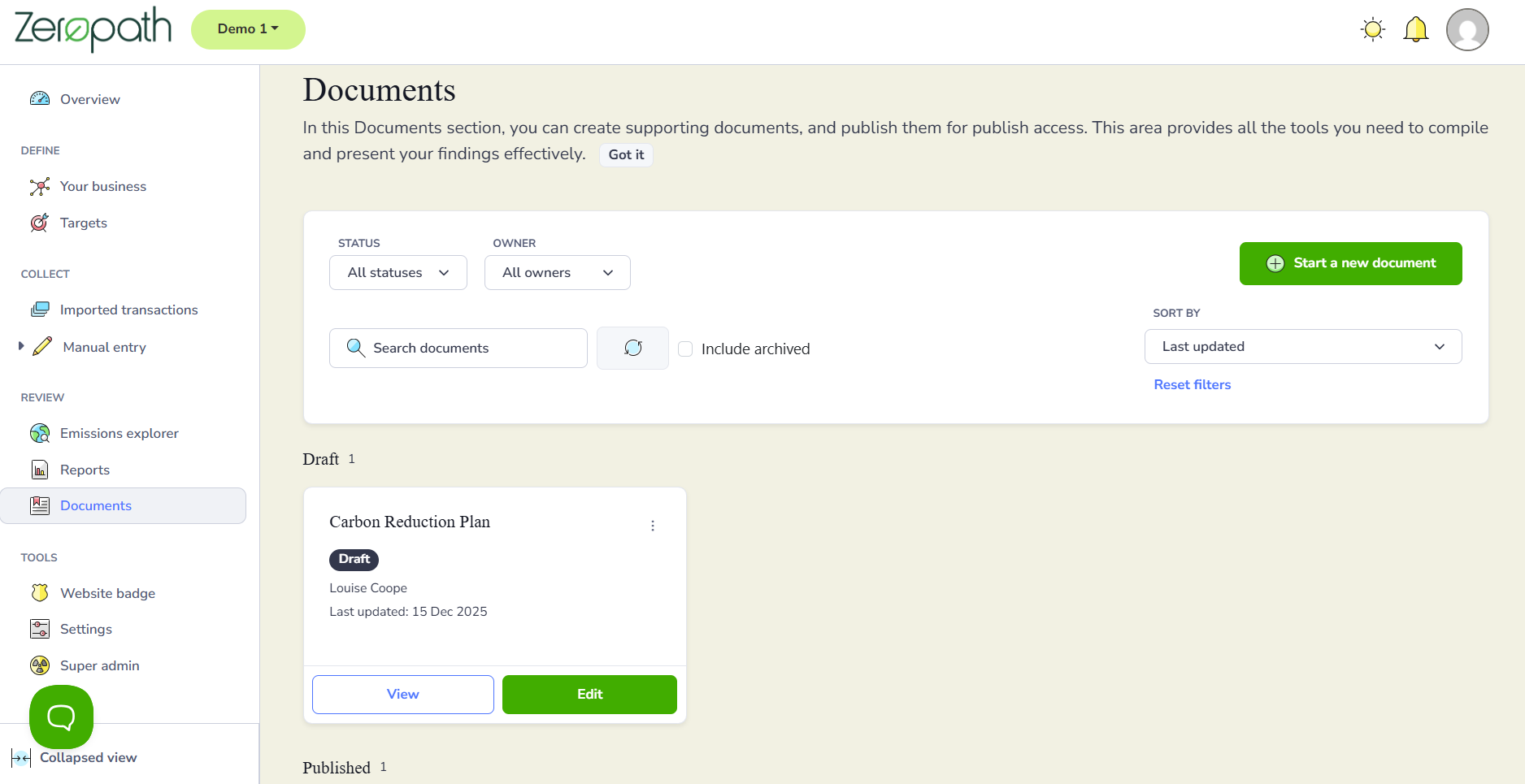
Go to Documents from the side menu to see all your documents listed by status.
Finding and viewing documents
You can search for any document using the search box. Use the Status and Owner filters to narrow down the list, and use Sort by to change the order results appear in. Tick Include archived if you want to see documents that have been archived.
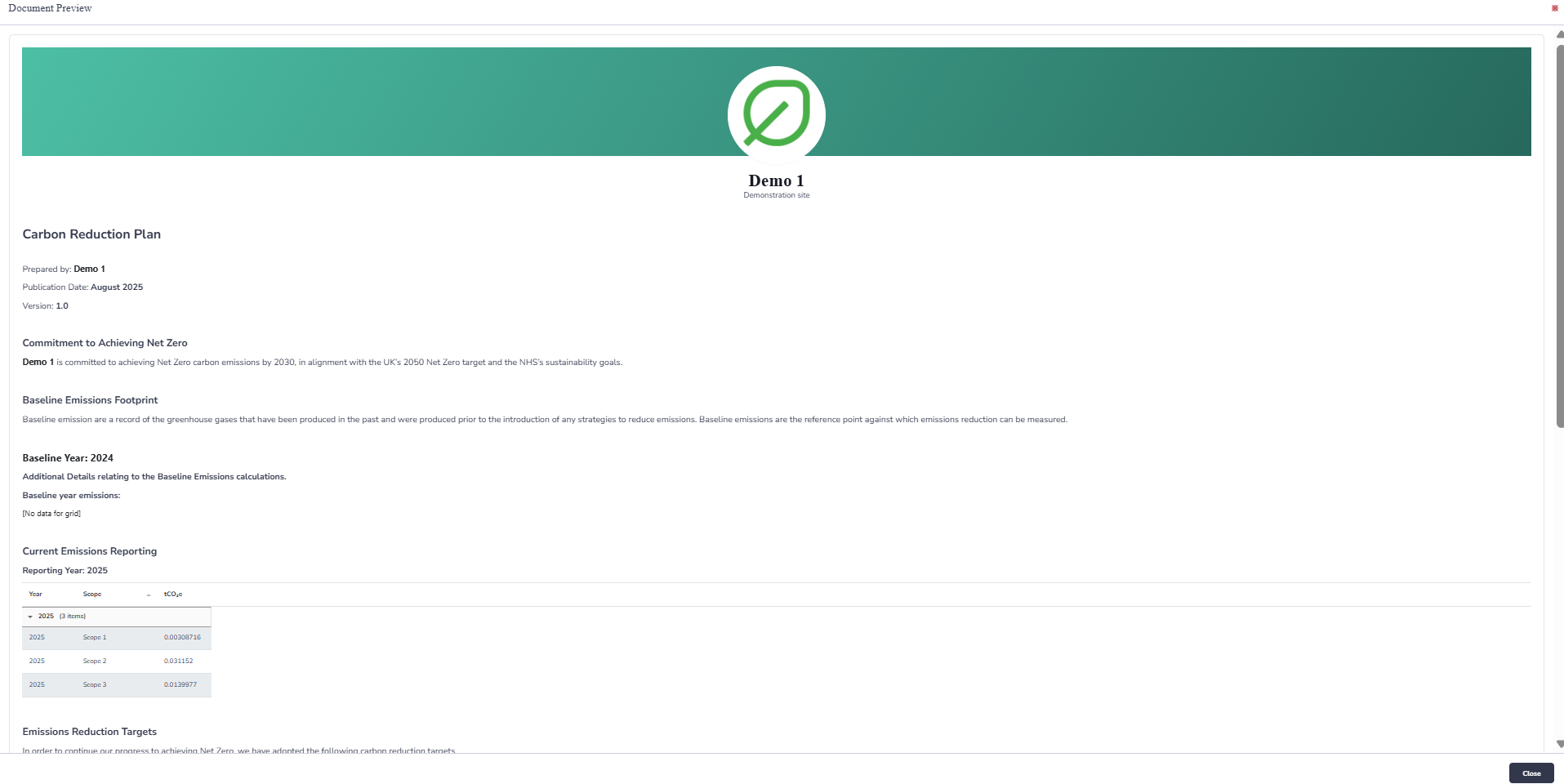
Documents in the Draft section can be opened by clicking View.
Changing the status of a document
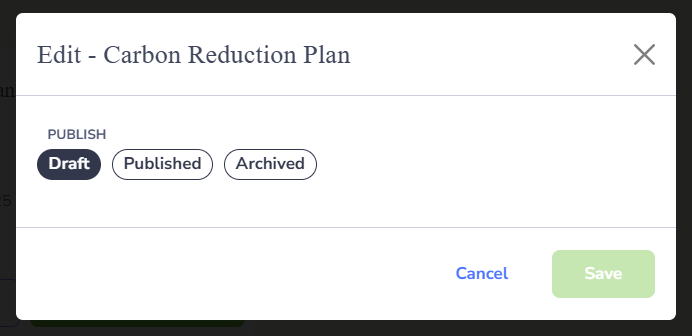
Click Edit on any document to change its status. The options are Draft, Published and Archived.
Draft means the document is still being worked on and is not visible publicly. Published makes the document available for sharing. Archived removes it from your main view but keeps a record of it.
Click Save once you have selected the status you want.
To delete a document, click the three dot menu at the top of the document and select Delete.
Creating a document from a template
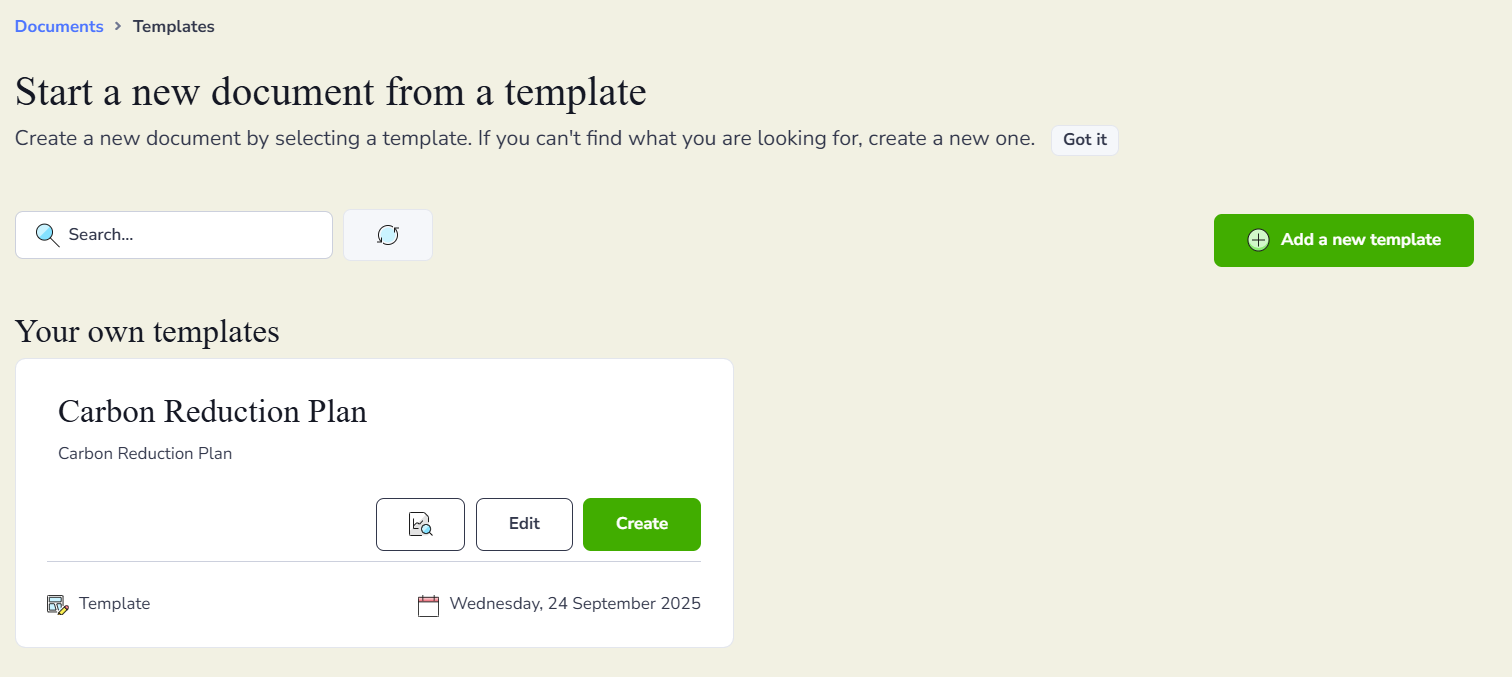
Click Start a new document to open the templates screen. Here you will see your own templates listed. For each template you have three options.
Click the preview icon to view the template before using it.
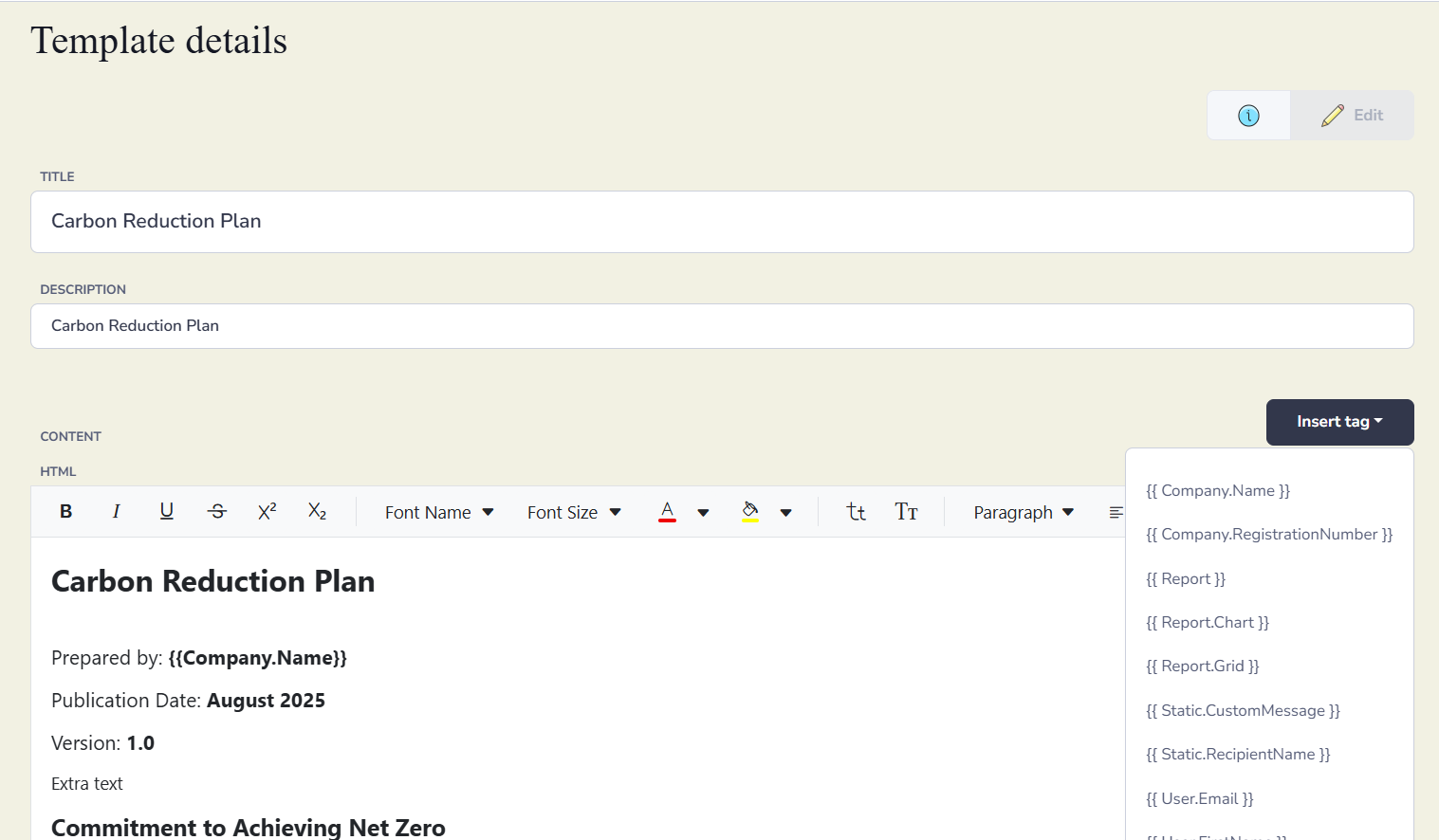
Click Edit to open the template and make changes to its content. In the template editor you can update the text and use the Insert tag button to add tags. Tags are placeholders that are automatically replaced with data from your Zeropath account when a document is generated. For example, the tag Company.Name will be replaced with your business name. Click Save when you have finished editing.
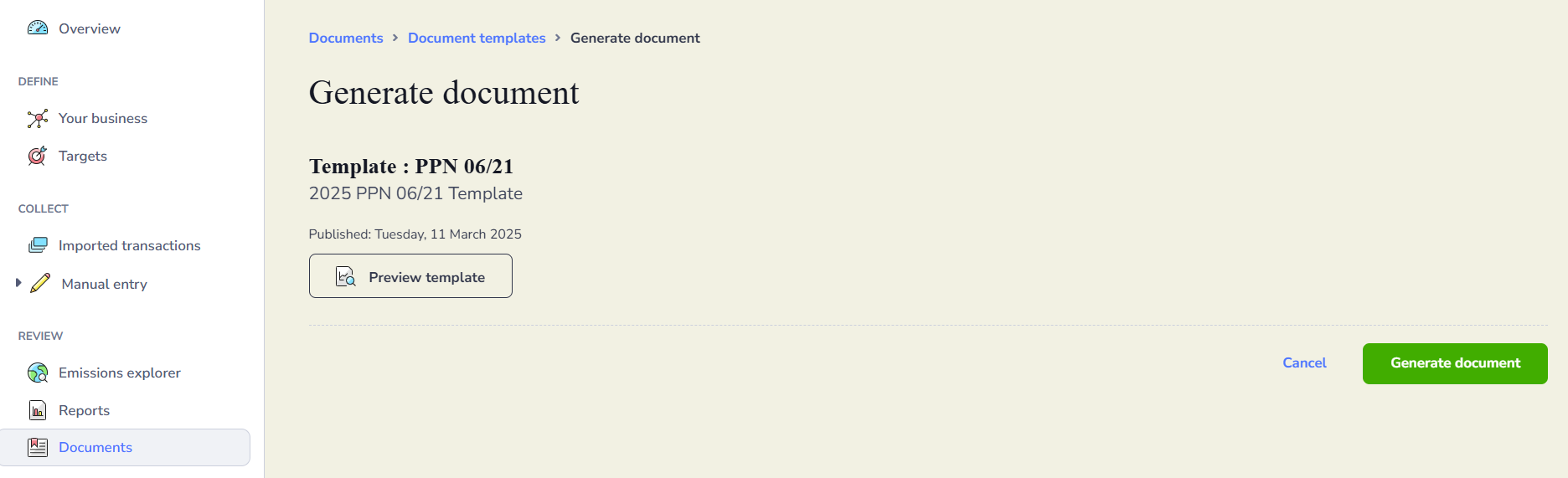
Click Create to generate a new document from the template. You will be taken to the Generate document screen where you can preview the template and apply any filters needed for the reports included in the document. Click Generate document to create a snapshot of the document using the latest data from your Zeropath account. The generated document will then appear in your Documents list.
Adding a new template
If you cannot find a suitable template, click Add a new template to create one from scratch.